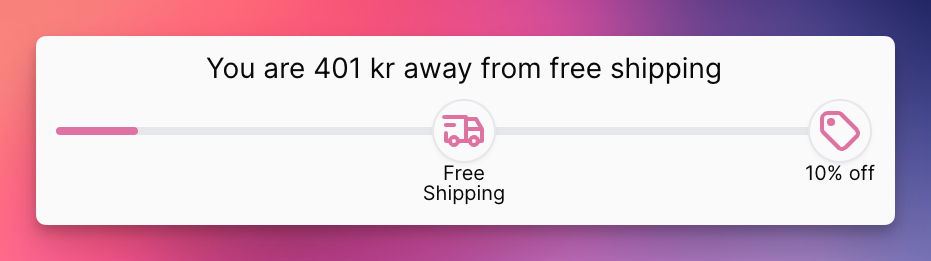
The free shipping bar / reward bar is a powerful feature in EliteCart that can help increase your sales and average order value. By displaying a progress bar that shows customers how much more they need to spend to qualify for free shipping, get a discount, or receive a gift, you can incentivize them to add more items to their cart. Here's how to set up the reward bar in EliteCart:
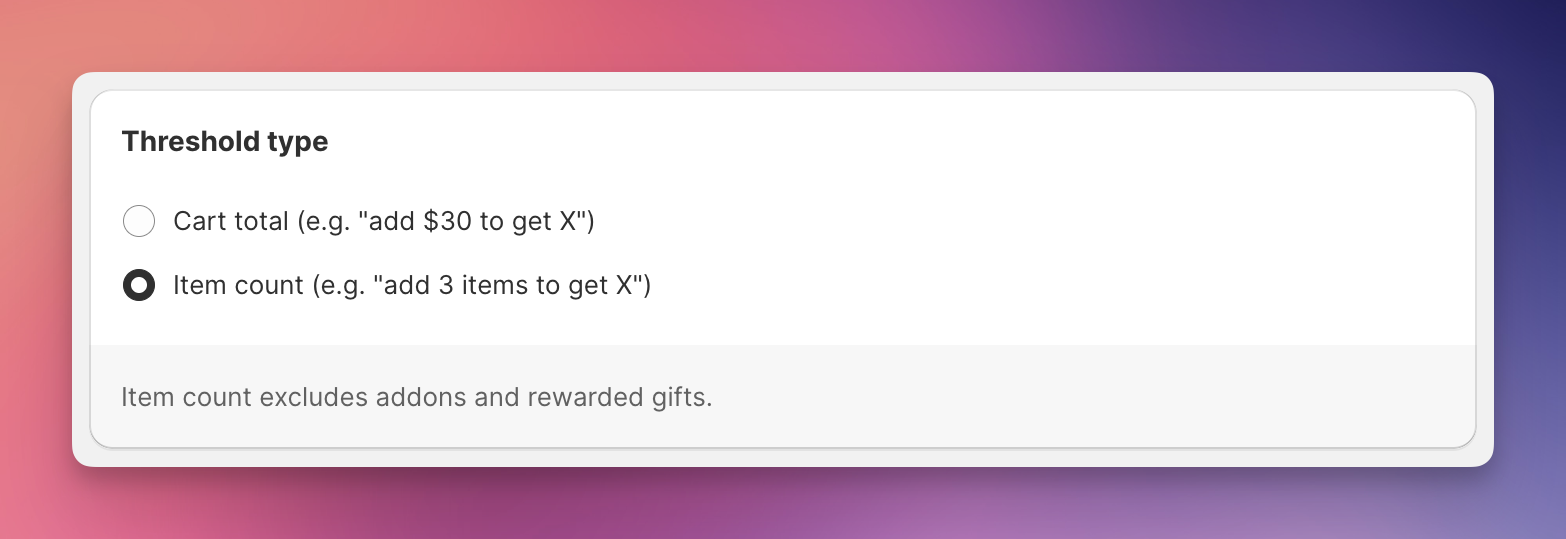
You can choose to have the reward bar activated based on
a) total value of the cart (e.g. 30 USD)
b) item count, i.e. amount of products in the cart (e.g. 3 items)
Note that the cart total always excludes gift cards. The item count always excludes addons and rewarded gifts.
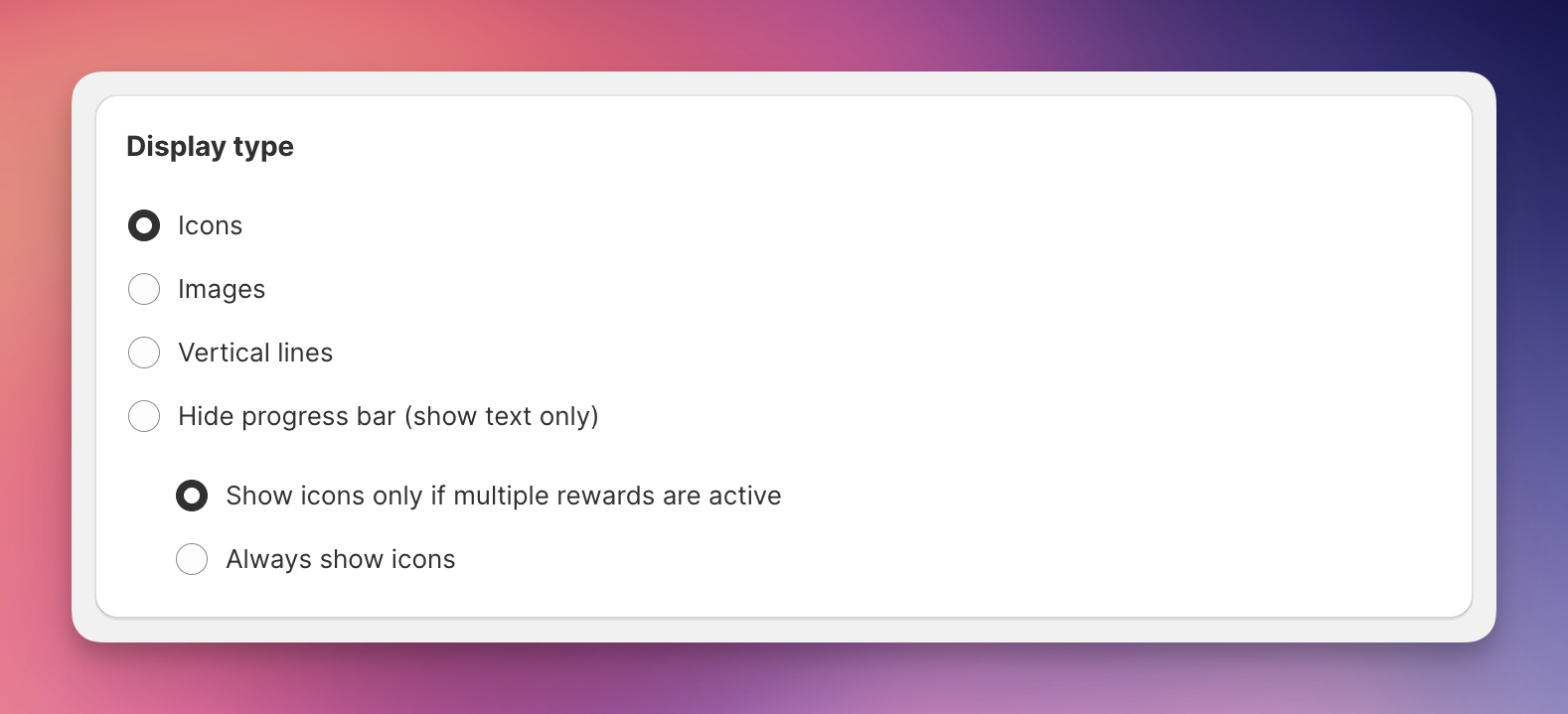
You can customize how the reward bar appears to your customers with the following display types:
Icons: Displays relevant icons for each reward with the following sub-settings:
Show icons only if multiple rewards are active: Displays relevant icons for each reward on top of the bar if you have set up more than one reward. Otherwise only the bar will be displayed.
Always show icons: Displays icons on top of the reward bar even if you have only enabled one reward.
Images (shows icon if no image is set): Allows you to upload custom images for each reward. If a reward is missing a custom image, we will display the default icon instead.
Image size setting: You can choose between two image sizes.
Upload your images: You can upload your images in each of the Rewards’s individual settings. There, you can upload 2 images per reward: One image that shows if the reward hasn’t yet been reached and one that shows once the reward was reached. Tip: If you upload .png images with a transparent background, the background will be filled once the reward was reached (just like the icons).
Vertical lines: Adds vertical separator lines on the bar to indicate the position of rewards. Since the last reward sits at the end of the bar, nothing will be displayed if only one reward was added.
Hide progress bar (show text only): Removes the visual progress bar completely, displaying only the text messages about the upcoming reward. (You will learn more about setting those below).
These display options help you customize the visual presentation of your reward bar to match your store's aesthetic and improve customer engagement.
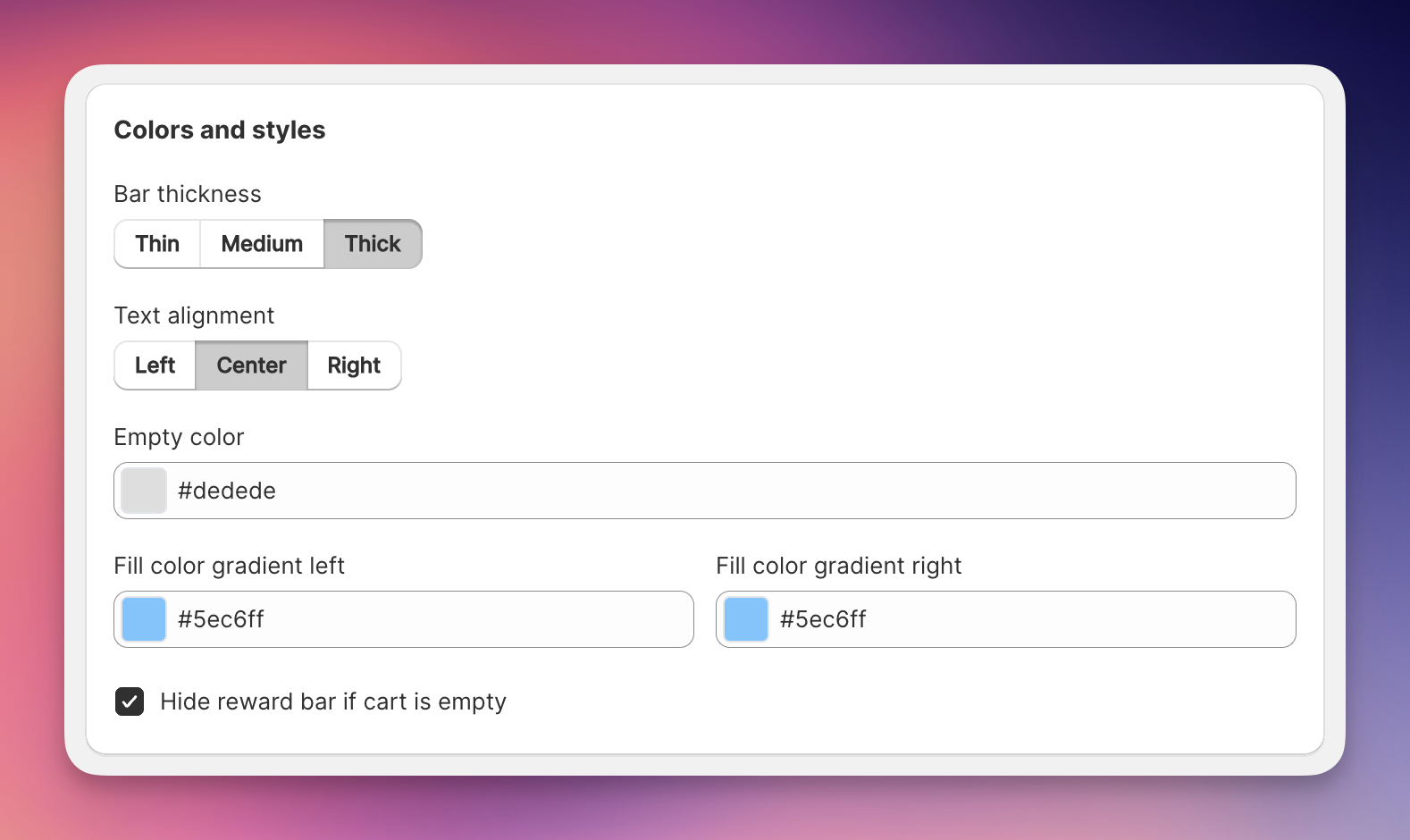
You can customize the appearance of the reward bar by changing the colors and styles in the Colors and styles section. You have settings for:
bar thickness: Choose between thin, medium and thick
text alignment: Choose between left, center and right
color of the empty bar
color of the filled bar as a gradient from left to right. (Set both colours of the gradient to the same colour to get a solid colour
hide the reward bar if the cart is empty

Read more about setup below.
Setting Up Rewards V2 (Flexible Rewards)
Create up to 20 rewards with per-reward scheduling, visibility conditions, market targeting, and more.