Rewards V2 is EliteCart's flexible reward system that replaces the fixed 3-reward structure with a dynamic reward list. You can create up to 20 rewards, each with its own type, threshold, texts, images, scheduling, conditions, and market targeting.
Reward V2 replaces the previous reward system, but both coexist - stores on V1 continue to work as before. V2 is available for all new setups, and existing V1 stores can migrate at any time.
How to tell which version you're on:
V1: You see sub-tabs labeled "Reward 1", "Reward 2", "Reward 3", and "Final text"
V2: You see a reward list card with all rewards sorted by threshold, and an "Add reward" button
In the left sidebar, click Cart designer
In the left panel under Features, click Rewards
The Rewards tab shows your reward list
If your store is on V1, you'll see a migration button in the reward settings. Click it to upgrade to V2. The migration:
Converts all existing rewards to the new format
Preserves all settings, thresholds, products, texts, and translations
Optimizes reward images for faster loading
Is fully automatic; no manual configuration needed
After migration, your rewards work exactly as before with all new V2 capabilities available.
On the Rewards tab, click Add reward at the bottom of the list
Choose a reward type from the modal:
Shipping: Free shipping when threshold is met
Discount: Shows progress toward a discount (set up the actual discount in Shopify)
Single gift: Automatically adds one free product to cart
Multi gift: Lets customers choose from multiple gift products
Discount (advanced) (recommended, new): EliteCart sets up and applies the Shopify discount for you. Choose a percentage or fixed amount, optionally restrict to specific collections or exclude subscriptions, and the discount is applied automatically in the cart and at checkout. The discount fully supports the advanced reward settings for conditions, market targeting, and scheduling.
Discount (legacy): Shows progress toward a discount that you've set up yourself in Shopify Admin. EliteCart only visualizes progress — it does not create or apply the discount. Use this when you need to reuse an existing Shopify-side discount or need a discount type that the advanced discount doesn't support.
The new reward appears in the list with a default threshold
Click the reward to configure its settings below the list
Click Save
You can create up to 20 rewards per store.
Each reward has a toggle switch on the right side of its row in the list. Toggle it to enable or disable the reward. Disabled rewards keep all their settings but don't appear on the storefront. This lets you prepare rewards in advance or temporarily pause them.
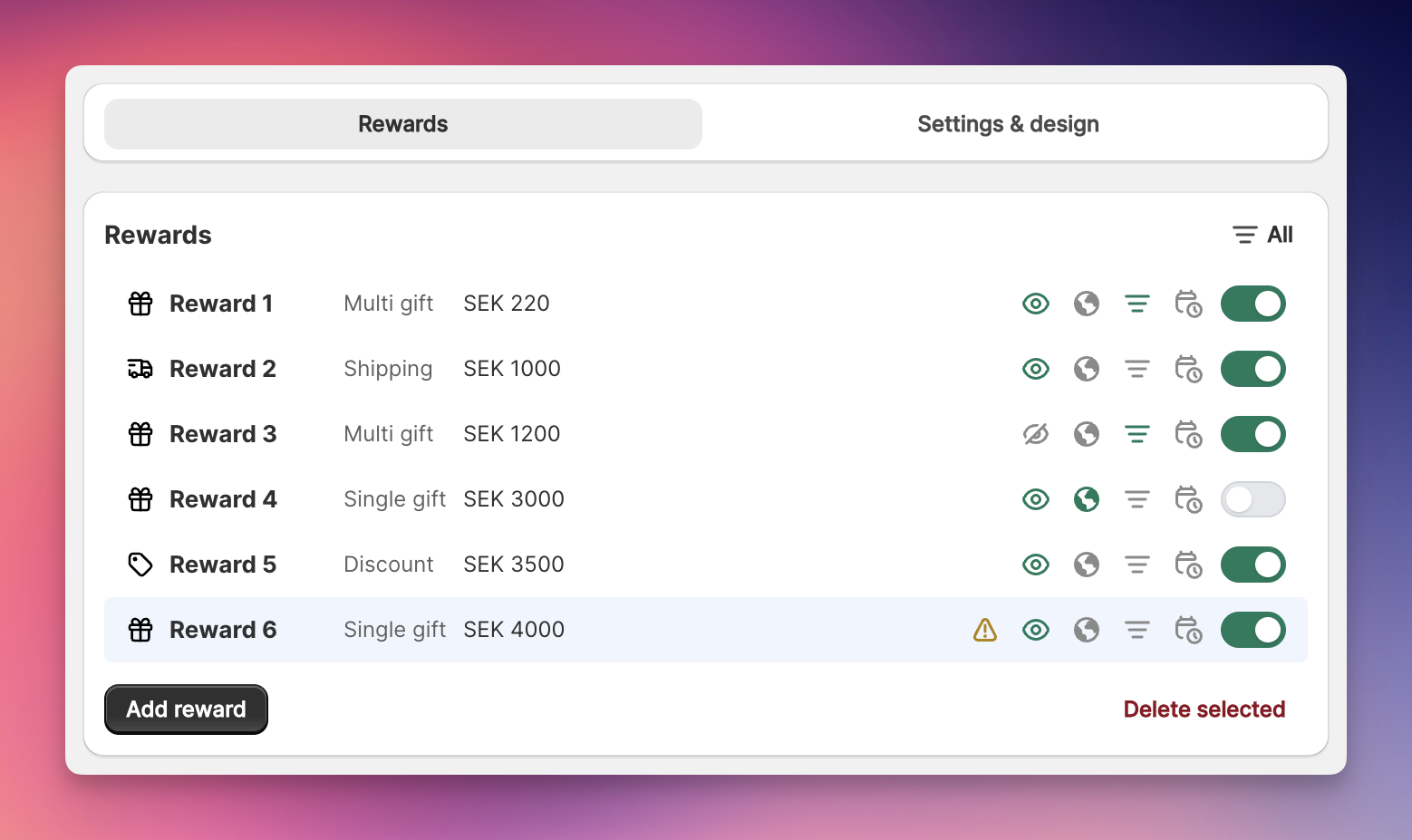
The reward list shows all rewards sorted by threshold (lowest first). Each row displays:
Type icon: Truck (shipping), percentage (discount), or gift box (gift)
Reward number: Auto-numbered based on threshold order
Threshold: The configured amount or item count
Indicator icons on the right side:
Orange warning triangle: Gift reward missing products: needs attention
Eye icon: Click to toggle visibility in reward bar (gifts and advanced discount only)
Green globe: Market-specific settings are active
Green filter: Condition rules are active
Green calendar: Scheduling rules are active
Toggle switch: Enable/disable
Use the filter dropdown at the top-right of the list to filter rewards by visibility status (All, Visible in reward bar, Not visible in reward bar).
Click a reward in the list, then click the Delete button in the reward settings panel. This permanently removes the reward and all its settings.
Click any reward in the list to view and edit its settings. Each reward has the following configuration sections:
Set the cart value or item count customers need to reach. The threshold type (cart total vs. item count) is a global setting found in Settings & design → Threshold type.
When you change a threshold, rewards automatically re-sort in the list.
By default every non-excluded cart line counts toward a reward's threshold. Expand the Scope threshold disclosure below the threshold input to limit the calculation to specific collections instead. This lets you build category-specific thresholds like "Spend $75 on Jackets to unlock free shipping" or "Buy 3 Skincare items to get a free gift".
Three modes are available:
All products (default) — every non-excluded line counts. No change from the original behaviour.
Specific collections (include) — only cart lines whose product belongs to at least one of the selected collections count toward this reward's threshold.
Exclude collections — cart lines in the selected collections are skipped. Everything else counts.
The usual exclusions (gifts, addons, gift cards, and products tagged _elite_exclude_from_reward_calculation) still apply on top of the scope.
Warning: If you pick Specific collections without selecting any collections, the threshold can never be met. A warning banner in the disclosure flags this. Empty exclude lists are harmless — they behave like "All products".
Info: Because only some items count, the reward bar can appear non-linear — adding an out-of-scope product raises the cart total but doesn't move the bar for the scoped reward. A blue info banner in the disclosure flags this. Preview your reward bar before publishing to check the experience.
Threshold scope works with every V2 reward type — shipping, advanced discount, legacy discount, single gift, and multi gift. It composes with the existing Apply discount to setting on advanced discount rewards: you can scope the threshold to one collection and apply the discount to a different collection (e.g. "Spend $100 on Jackets, get 10% off Accessories").
The scope is respected everywhere the threshold is evaluated: the storefront reward bar, the Plus-only Cart Transform (which zeros qualifying gifts), the Gift eligibility enforcement validation (which blocks checkout if the scoped threshold isn't met), and the advanced-discount Shopify Function
For Single gift and Multi gift reward types:
Click Select products to choose gift products from your catalog
For single gift: select one product (optionally a specific variant)
For multi gift: select up to 8 products for customers to choose from
A Gift health summary shows the status of each product (availability, pricing). You can also Create gift product directly from here, which duplicates an existing product and configures it as a free gift.
Tip: Gift products should be priced at $0 so customers aren't charged. If your gift products aren't free, enable Cart Transform (Shopify Plus) or Automatic discount (any plan) in Settings & design → Automatic gift application to automatically re-price them to $0 at checkout. See Auto-discount gifts for details.
Each reward has three text fields:
Away from [reward type]: Shown while the customer hasn't reached the threshold. Use {amount} as a placeholder for the remaining amount (e.g., "You are {amount} away from free shipping").
Reward achieved: Shown when this reward's threshold is reached.
Description (optional): Appears below the reward icon when using icon or image display types.
For multi-language stores, click the language tabs or translate button to configure translations per language. Each reward stores translations independently.
When the display type is set to Images (configured in Settings & design → Display type):
Reward image: Shown while the customer is progressing toward this reward
Reward achieved image: Shown after the threshold is reached
Upload images by dragging and dropping or clicking Add image. Accepted formats: .jpg, .png, .webp. Images are automatically optimized after upload.
Check "Hide this reward in the reward bar" to make a gift reward function without appearing in the progress bar. The gift still auto-adds to cart and the gift chooser still appears when the threshold is met - only the visual milestone in the bar is hidden.
This is useful for:
Promotions communicated outside the store (e.g., email campaigns promising a free gift)
Keeping the reward bar clean while still offering gifts at certain thresholds
Combining with conditions to create targeted promotions
Hidden rewards show a crossed-out eye icon in the reward list. You can also toggle visibility by clicking the eye icon directly in the row.
When you add a Discount (advanced) reward, an extra Discount configuration card appears in the reward settings panel. This is where you specify the discount itself — no Shopify Admin setup required.
Discount type: Toggle between Percentage (a percent off the order total) and Fixed amount (a flat amount off the order in your store's base currency). Default is Percentage.
Discount percentage or Discount amount: Enter the value. For percentage, 0–100. For fixed amount, enter it in your store's base currency — EliteCart automatically converts it to each customer's presentment currency at checkout.
Discount title: The label customers see next to the discount at checkout (e.g. "10% off your order"). This field is translatable — use the language tabs or translate button to set a different title per language.
Info: Only one advanced discount applies per cart. Due to Shopify's limitations, only the single highest-value order discount will apply at checkout, even if the customer qualifies for multiple advanced discount rewards. Tiered discount progressions ("$50 → 5% off, $100 → 10% off") work automatically — the higher tier replaces the lower one as the customer crosses each threshold.
By default an advanced discount applies to every eligible line in the cart. The Apply discount to toggle in the Discount configuration card lets you scope it:
All products (default): Discount applies to every eligible line.
Specific collections (include): Discount applies only to products that belong to one of the selected collections. Click Add collections to pick them.
Exclude collections: Discount applies to every eligible line except products in the selected collections.
Warning: If you choose Specific collections and don't select any collections, the discount will not apply to anything. A warning banner in the card flags this.
The threshold still evaluates against the full cart (with the usual exclusions for gifts, addons, gift cards, and tagged products). The collection filter only controls which cart lines the discount targets once the threshold is met.
A Don't apply this discount to subscription items checkbox sits at the bottom of the Discount configuration card. When checked (the default), EliteCart's Shopify Function skips any cart line with a selling plan (recurring or prepaid subscription), so the advanced discount does not apply to subscription line items. Uncheck it only if you intentionally want the discount to also apply to subscriptions.
Subscription line items still count toward the reward threshold as normal — this setting only affects whether the discount is applied to them.
Requires Professional plan.
Each reward has its own market targeting, found in the Shopify Markets expandable card:
Choose visibility: Always show, Show for selected markets, or Hide for selected markets
Select countries using the country picker
Use template presets (EU Countries, North America, DACH, Nordic, UK & Ireland, Oceania) to quickly select common groups
Optionally set market-specific thresholds for different countries
This lets you create region-specific rewards. For example, a $50 free shipping reward for the US and a €40 reward for EU countries.
A green globe icon appears in the reward list when market settings are active.
Requires Professional plan.
Show or hide individual rewards based on dynamic conditions. Found in the Conditions expandable card:
Choose logic mode: All conditions must match (AND) or Any condition can match (OR)
Click Add condition and select a type:
Customer is logged in / not logged in Show rewards based on login status. Use this for loyalty rewards (logged-in only) or registration incentives (guests only).
UTM parameter equals / does not equal / contains / does not contain Target rewards based on URL tracking parameters (utm_source, utm_medium, utm_campaign, etc.). UTM values persist for 72 hours in the visitor's browser, so customers who arrived via a specific campaign link continue to see the reward as they browse. Example: Run a Klaviyo email campaign with a link containing ?utm_campaign=vip-gift. Create a gift reward with the condition "utm_campaign equals vip-gift" - only email subscribers who click through will see the reward. Note: UTM conditions are not available for Discount reward types.
Product is in cart / not in cart Show rewards when specific products are in the cart. Optionally set a minimum quantity (e.g., "at least 2 of Product X"). Useful for product-specific bonus gifts or cross-sell incentives.
Collection is in cart / not in cart Show rewards when any product from a specific collection is in the cart. Also supports minimum quantity. More flexible than product conditions - adding new products to the collection in Shopify automatically includes them.
Customer has tag / does not have tag Show rewards based on Shopify customer tags. Enter a tag name (e.g. "VIP" or "wholesale") - matching is case-insensitive and privacy-safe. Only applies to logged-in customers; guests never match a "has tag" condition. Useful for loyalty tiers or exclusive promotions. Example: Tag your top customers as "VIP" in Shopify, then create a gift reward with the condition "Customer has tag: VIP" - only those customers will see the reward when they're logged in.
Customer is a B2B customer / is not a B2B customer Show rewards based on whether the shopper is signed in as a native Shopify B2B (company-account) customer. Useful for wholesale-only promotions, or for hiding consumer rewards from B2B buyers. Detection is automatic — there's no tag to manage, and it works on every Shopify plan that supports native B2B. If you use a third-party B2B app or a "wholesale" customer tag instead, use the Customer has tag condition. Example: Offer a 10% wholesale-only discount: add a Discount (advanced) reward and set the condition "Customer is a B2B customer". Only signed-in B2B buyers will see the reward in the cart and receive the discount at checkout.
You can add up to 5 top-level conditions, with up to 5 conditions per group. A green filter icon with a condition count badge appears in the reward list when visibility rules are active.
Requires Professional plan.
Control when each reward appears based on time. Found in the Scheduling expandable card:
Click Add schedule rule
Configure the rule:
Days of week: Select which days the reward is visible
Time ranges: Optionally add specific time windows (24-hour format)
Date range: Optionally restrict to a specific date period
Add up to 3 rules per reward (rules use OR logic - visible if any rule matches)
All times use your shop's configured timezone. The card header shows the current status in real-time: "Currently visible" or "Currently hidden".
Example schedules:
Weekday flash deal: Monday–Friday, 12:00–14:00
Holiday promotion: December 1–25, all day
Weekend free shipping: Saturday–Sunday, no time restriction
A green calendar icon appears in the reward list when scheduling is active.
The Settings & design tab contains settings that apply to all rewards regardless of version:
Threshold type: Cart total or item count
Display type: Icons, images, vertical lines, or text-only
Colors and styles: Bar thickness, colors, text alignment, progress bar styling
Gift chooser: Display format for multi-gift selection
Cart Transform (Shopify Plus): Automatically set gift prices to $0
These settings are documented in the existing Setting Up the Reward Bar article.
Up to 20 rewards per store, compared to 3 in V1.
The migration is one-way. However, your rewards work the same as before - V2 is a superset of V1 with additional capabilities. If you only need 3 rewards and don't use advanced features, V2 behaves identically to V1.
The core V2 functionality (up to 20 rewards, per-reward texts, images, hidden rewards) is available on all plans. Conditions, scheduling, and market targeting require the Professional plan.
The reward simply won't appear on the storefront. It's like having it disabled, but it activates automatically when conditions are met.
Yes. A reward must satisfy all active settings to appear: it must be enabled, within schedule, pass visibility conditions, and match market targeting.
Rewards are always sorted by threshold value. Changing a threshold repositions the reward.
No. The type is set at creation. Delete the reward and create a new one with the desired type.
Most conditions work with all types. UTM parameter conditions are not available for Discount reward types.