Discounts are a sure way to incentivize customers to increase their order value or quantity to unlock them. Here's how you can set up discount rewards with Shopify's automatic discounts in EliteCart, including three powerful strategies: monetary thresholds, quantity-based discounts, and advanced product exclusion techniques.

Discounts are a reliable way to incentivize customers to increase their order value or quantity to unlock them. In Rewards V2 you have two ways to run a discount reward in EliteCart:
Discount (advanced) — recommended, new. EliteCart sets up and applies a Shopify automatic order discount for you. You configure the percentage or fixed amount directly inside the reward in EliteCart — no Shopify-side discount setup required. This is the fastest path and what we recommend for new rewards.
Discount (legacy) — the original approach. You create an automatic discount in Shopify Admin yourself, and the EliteCart reward bar visualises progress toward it. Use this if you need to reuse an existing Shopify-side discount, need discount-combination semantics that advanced discounts do not support, or need a discount type other than "amount off order" (e.g. "Buy X get Y", which has to be set up in Shopify).
Both types remain fully supported and can coexist in the same reward bar.
When you click Add reward in EliteCart, pick Discount (advanced) from the reward-type modal (it carries a "New" badge). This reward type uses a Shopify Function that EliteCart provisions for you — no merchant-side Shopify discount needs to exist.
In Cart designer → Rewards → Rewards tab, click Add reward.
Pick Discount (advanced) from the modal.
Set the Threshold — the cart value (or item count) customers need to reach.
In the new Discount configuration card:
Toggle between Percentage and Fixed amount.
Enter the discount value. For fixed amount, enter it in your store's base currency — EliteCart converts it to each customer's presentment currency automatically at checkout.
Set the Discount title — the label customers see at checkout (e.g. "10% off your order"). Translatable per language.
(Optional) Under Apply discount to, restrict the discount to specific collections (include mode) or exclude certain collections.
(Optional) Uncheck Don't apply this discount to subscription items if you want the discount to also apply to subscription line items. By default subscription lines are excluded.
(Optional) Use the reward's Conditions, Shopify Markets, and Scheduling cards to further restrict when / where / for whom the discount applies.
Click Save. EliteCart creates and activates the corresponding Shopify Function-based automatic order discount for you. There is nothing to do in Shopify Admin.
Only one advanced discount applies per cart, even if the customer qualifies for multiple. Shopify's native MAXIMUM selection strategy automatically picks the single highest-value qualifying reward, so tiered progressions just work:
Example: Reward 1 — Spend $50, 5% off. Reward 2 — Spend $100, 10% off.
A customer with a $60 cart gets the 5% discount. A customer with a $110 cart gets the 10% discount (not 5% + 10%). No additional configuration needed.
If you want the discount to apply to only part of the cart — for example, "Spend $100, get $20 off skincare" — use the Apply discount to → Specific collections mode inside the Discount configuration card and pick the collection. EliteCart's Shopify Function applies the discount only to the matching lines. You do not need to use product tags or create Shopify-side product-scoped discounts for this anymore.
Scoping the threshold itself. There's also a separate Scope threshold setting under the reward's Threshold card that limits which cart lines count toward unlocking the reward. The two compose cleanly:
Apply discount to alone (threshold scope = "All products"): "Spend $100 on the whole cart, get $20 off skincare" — every dollar in the cart counts toward $100; the $20 is only taken off the skincare items.
Scope threshold alone (discount applies to all eligible lines): "Spend $100 on skincare, get $20 off the whole cart" — only skincare counts toward $100; the $20 comes off everything eligible.
Both scoped to the same collection: "Spend $100 on skincare, get $20 off skincare" — the fully-scoped version that used to require a Shopify "Amount off products" discount with minimum-purchase requirements on the same collection.
Scoped to different collections: "Spend $100 on Jackets, get 10% off Accessories" — the threshold watches one collection while the discount targets another.
For the fully-scoped skincare scenario, picking Specific collections in both places and selecting "Skincare" replaces the legacy Shopify-side setup entirely.
By default advanced discounts are not applied to subscription line items (recurring or prepaid), so you don't cannibalise recurring revenue. Uncheck Don't apply this discount to subscription items in the Discount configuration card if you want the opposite.
Advanced discount rewards support UTM-parameter conditions via a cart-attribute bridge to the Shopify Function. You can run something like "customers who arrive via ?utm_campaign=vip-gift get 15% off" — see the UTM section in the Setting Up Rewards V2 article for how to configure it.
The rest of this article covers the legacy path, where you set up an automatic discount in Shopify Admin → Discounts yourself and then link the reward bar to it by adding a Discount (legacy) reward in EliteCart. Everything below is unchanged from the original workflow.
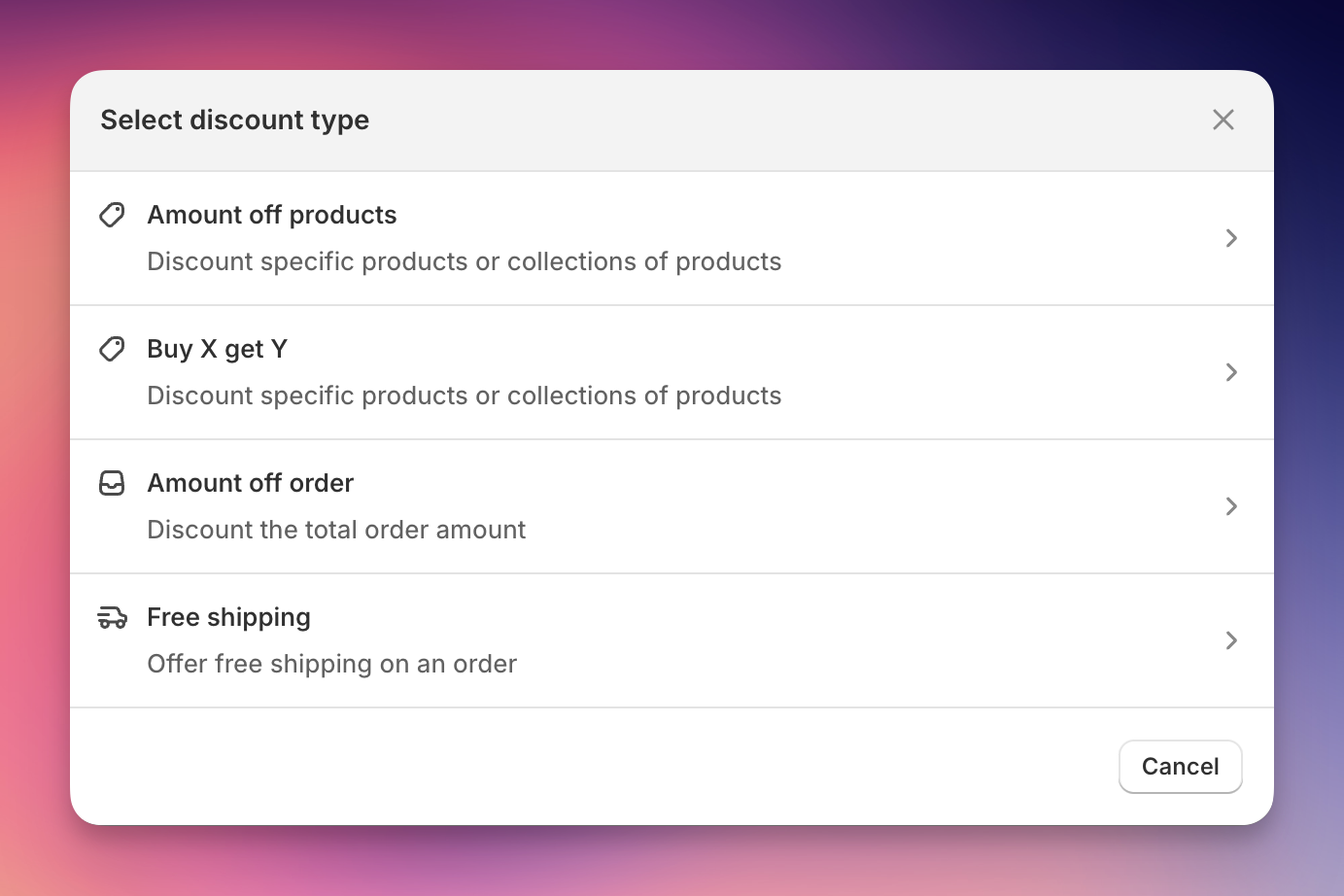
Shopify offers several discount types:
Amount off products: Discounts specific products or collections
Buy X Get Y: Customers buy certain products to get other products free or discounted
Amount off order: Discounts the entire order total
Free shipping: Removes shipping costs
Scenario | Shopify discount type | EliteCart Reward |
Order 3 items, get 10% off | Amount off order | Discount |
Order 3 items, get $20 off | Amount off order | Discount |
Spend $100, get 10% off | Amount off order | Discount |
Spend $100, get $20 off | Amount off order | Discount |
Order 3 [specific products], get 10% off [specific products] | Amount off products | Discount |
Spend $100 on [specific products], get $20 off [specific products] | Amount off products | Discount |
Free shipping on orders over $100 | No discount. Use shipping settings. | Shipping |
Order 3 items, get a free [product] | Buy X get Y | Gift* |
Spend $100, get a free [product] | Buy X get Y | Gift* |
*we generally recommend creating separate free gift products rather than using discounts.
Amount off order: For discounts on the ENTIRE order
Works with quantity thresholds (order X items)
Works with monetary thresholds (spend $X)
Most versatile and commonly used
Amount off products: For discounts on SPECIFIC products only
Also works with quantity thresholds (order X specific items)
Also works with monetary thresholds (spend $X on specific items)
Use when discount should be restricted to certain collections
Buy X get Y: Only for free product offers
Use with EliteCart's Gift reward feature
Consider using separate free gift product instead.
Free Shipping: Don’t use discounts
Configure in Shopify's shipping settings
The EliteCart reward bar can work with multiple discount types depending on your strategy:
In your Shopify admin, go to Discounts and click "Create discount"
Choose one of these discount types based on your needs:
Amount off order: For simple percentage/fixed discounts on entire order
Amount off products: For more targeted discounts (can work with or without product restrictions)
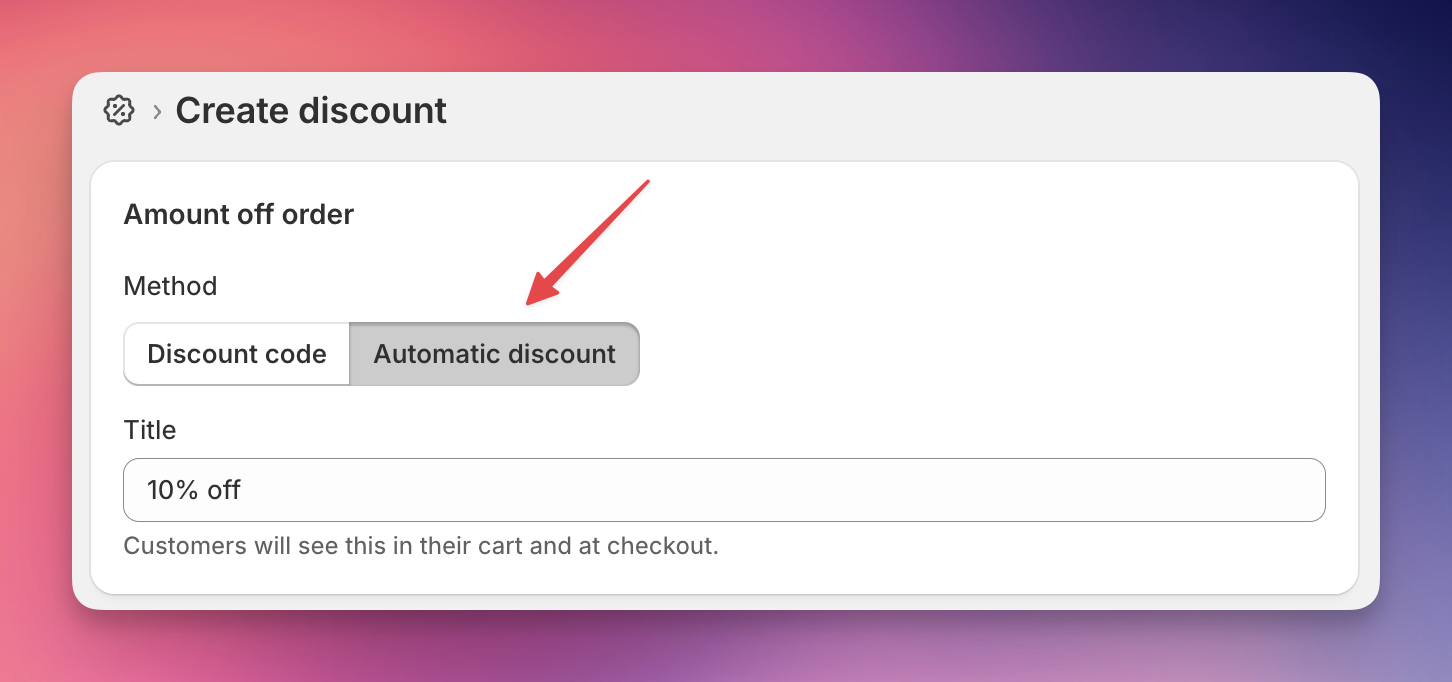
Switch the Method to Automatic Discount to ensure automatic application
If you're offering a free product as a reward (using EliteCart's gift reward feature):
Choose Buy X Get Y as the discount type
Set up the qualifying conditions (what customers must buy)
Specify the gift product that EliteCart will automatically add
Set the discount to “Free”
Set number of maximum uses per order to 1
Use "Amount off order" when you want the discount to apply to the ENTIRE order.
Order 3 items, get 10% off
Order 5 items, get 15% off
Order 10 items, get $50 off
Setup in Shopify:
Create discount → Select "Amount off order"
Choose "Automatic discount"
Set discount value (percentage or fixed amount)
Under Minimum purchase requirements:
Select "Minimum quantity of items"
Enter quantity (e.g., 3)
Spend $50, get 5% off
Spend $100, get 10% off
Spend $200, get $30 off
Setup in Shopify:
Create discount → Select "Amount off order"
Choose "Automatic discount"
Set discount value (percentage or fixed amount)
Under Minimum purchase requirements:
Select "Minimum purchase amount ($)"
Enter amount (e.g., $100)
Use "Amount off products" when you want the discount to apply ONLY to specific products/collections.
Example: "Order 3 shoes, get 10% off shoes"
Setup in Shopify:
Create discount → Select "Amount off products"
Choose "Automatic discount"
Under Apply to, select specific collection (e.g., "Shoes")
Set discount value (10%)
Under Minimum purchase requirements:
Select "Minimum quantity of items"
Enter quantity (3)
Note: Only items from the selected collection count
Example: "Spend $100 on skincare, get $20 off skincare"
Setup in Shopify:
Create discount → Select "Amount off products"
Choose "Automatic discount"
Under Apply to, select specific collection (e.g., "Skincare")
Set discount value ($20)
Under Minimum purchase requirements:
Select "Minimum purchase amount ($)"
Enter amount ($100)
Note: Only spending on the selected collection counts
EliteCart Configuration for Both:
Use Discount reward type
Match thresholds exactly
Click Scope threshold → Specific collections, and pick the collection. No product-tag bookkeeping required. See [Scoping the threshold itself] above.
Clear messaging:
Quantity: "Order 3 shoes for 10% off shoes"
Monetary: "Spend $100 on skincare for $20 off"
Use "Buy X get Y" when offering free products as rewards.
Important Note: While this is entirely possible, we generally recommend creating separate free gifts rather than using discounts to not limit yourself in regards to discount combinations and usage of discounts in other ways.
Example: "Order 3 items, get free socks"
Setup in Shopify:
Create discount → Select "Buy X get Y"
Choose "Automatic discount"
Under Customer buys:
Minimum quantity of items: 3
Any items from: All products
Under Customer gets:
Quantity: 1
Specific product: Your gift product
At discounted value: Free
Example: "Spend $100, get free tote bag"
Setup in Shopify:
Create discount → Select "Buy X get Y"
Choose "Automatic discount"
Under Customer buys:
Minimum purchase amount: $100
Under Customer gets:
Quantity: 1
Specific product: Your gift product
At discounted value: Free
EliteCart Configuration for Both:
Use Gift reward type (not discount reward)
EliteCart automatically adds the gift to cart
Shopify discount makes it free
Do NOT use discount types for free shipping.
Correct Setup:
In Shopify, go to Settings → Shipping and delivery
Edit your shipping zones
Add rate with conditions:
Name: "Free shipping"
Price: $0
Conditions: Minimum order value (e.g., $100)
EliteCart Configuration:
Use Shipping reward type
Set threshold to match shipping settings
Message: "Spend {amount} more for free shipping!"
Shopify has strict rules about discount combinations that affect all strategies:
Discount Combinations: Several order discounts cannot combine, even if they are set to combine. Shopify will always show the highest discount only.
Test Combinations: Always test how discounts interact before launching
Be especially careful as these can conflict with other discount types
Consider whether the gift discount should combine with order discounts
Test thoroughly to ensure the gift is properly discounted when conditions are met
Read more about combining discounts at Shopify's help center.
Test Different Strategies: Try various approaches over time (stacked order discounts, category-specific, gift rewards, combinations) to find what works best
Keep It Simple: Don't overwhelm customers. Keep it simple and easy to understand.
Clear Communication: Ensure messaging clearly indicates which products count toward rewards
Consider Combinations: Be mindful of discount combination rules and conflicts
Make Thresholds Achievable: Set realistic goals that encourage additional purchases
Update Seasonally: Adjust your discount structure during peak seasons or sales events
Use Shipping Settings: For free shipping, use Shopify's shipping settings rather than discounts