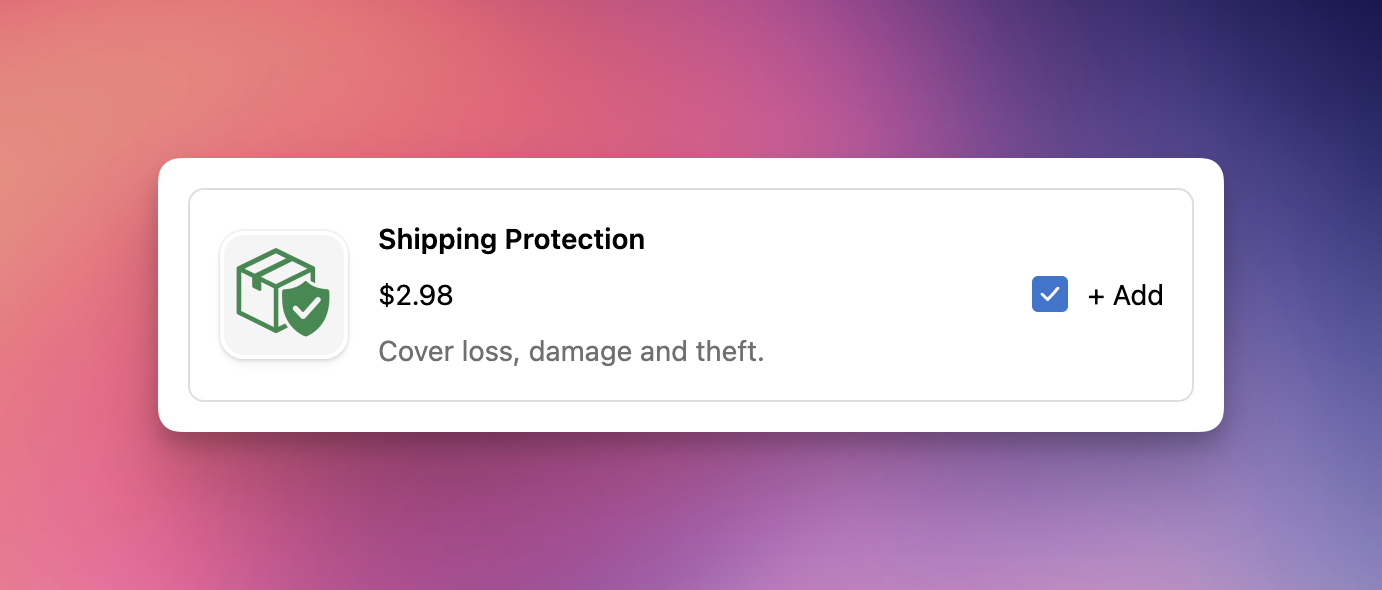
The Checkout Add-on block shows one optional product as a compact card with a checkbox on Shopify's checkout page, so shoppers can tick it to add the item before they pay - ideal for upgrades like priority handling, gift wrap, or a warranty. You can place several Add-on blocks in different checkout spots, each bound to its own module.
Shopify Plus
EliteCart Professional plan or higher
In EliteCart, go to Checkout → Create module.
In Add a checkout module, choose Add-on and click Create module.
Set an Internal name (shown only in the admin) and set Status to Active.
Under Add-on product, click Select product and pick the product and the exact variant to offer.
Set the Display options and write the Text (see Key settings).
Click Save.
On the module page, copy the Module ID with the Copy ID button.
Click Open checkout editor (or in Shopify admin go to Settings → Checkout → Customize).
Add the Elite Add-on block where you want it, and paste the Module ID into the block's settings.
Save the checkout editor. The status banner on the module page confirms when the block is found.
Tip: To offer different add-ons in more than one spot, create a separate module for each and bind each block to its own Module ID.
Add-on product - the product and the exact variant the block offers. The block shows nothing until a variant is selected, or if that variant later sells out or is removed.
Show product image - shows a large thumbnail next to the add-on.
Show compare-at price - shows the struck-through original price when the variant is on sale.
Show card border - draws a frame around the block.
Hide once added - hides the whole block after the shopper adds the add-on (good for a one-time offer).
Text - Headline (bold line above the add-on), Description (optional supporting line), and Checkbox label (the text next to the checkbox). Use {product_title} in any of these to insert the product's name. Translate them in Language & translations.
Save the module and the checkout editor.
Open your store and proceed to checkout.
Confirm the add-on appears where you placed the block.
Tick the checkbox and verify the product is added to the order at the right price; untick it and confirm it is removed.