The Checkout Upsells block shows targeted product recommendations on Shopify's checkout page, so shoppers can add one more item before they pay. You can place several blocks in different checkout spots, each bound to its own module.
Shopify Plus
EliteCart Professional plan or higher
In EliteCart, go to Checkout → Create module.
In Add a checkout module, choose Upsell block and click Create module.
The module editor has two tabs: Features and design and Upsell setup.
Set an Internal name (shown only in the admin) and set Status to Active.
Under Strategy, choose how the block decides what to show:
EliteAI™ Ultra - AI‑powered recommendations.
Upsell flows - hand‑picked products you control.
Hybrid: Flows + AI - run your flows first, then let AI fill the gaps.
If you use flows, open the Upsell setup tab and click Add flow to choose products and a trigger. The first flow whose trigger matches the cart wins.
Adjust layout, display, and text (see Key settings), then click Save.
On the module page, copy the Module ID with the Copy ID button.
Click Open checkout editor (or in Shopify admin go to Settings → Checkout → Customize).
Add the Elite Checkout Upsell block where you want it, and paste the Module ID into the block's settings.
Save the checkout editor. The status banner on the module page confirms when the block is found.
Tip: To show upsells in more than one checkout location, create a separate module for each and bind each block to its own Module ID.
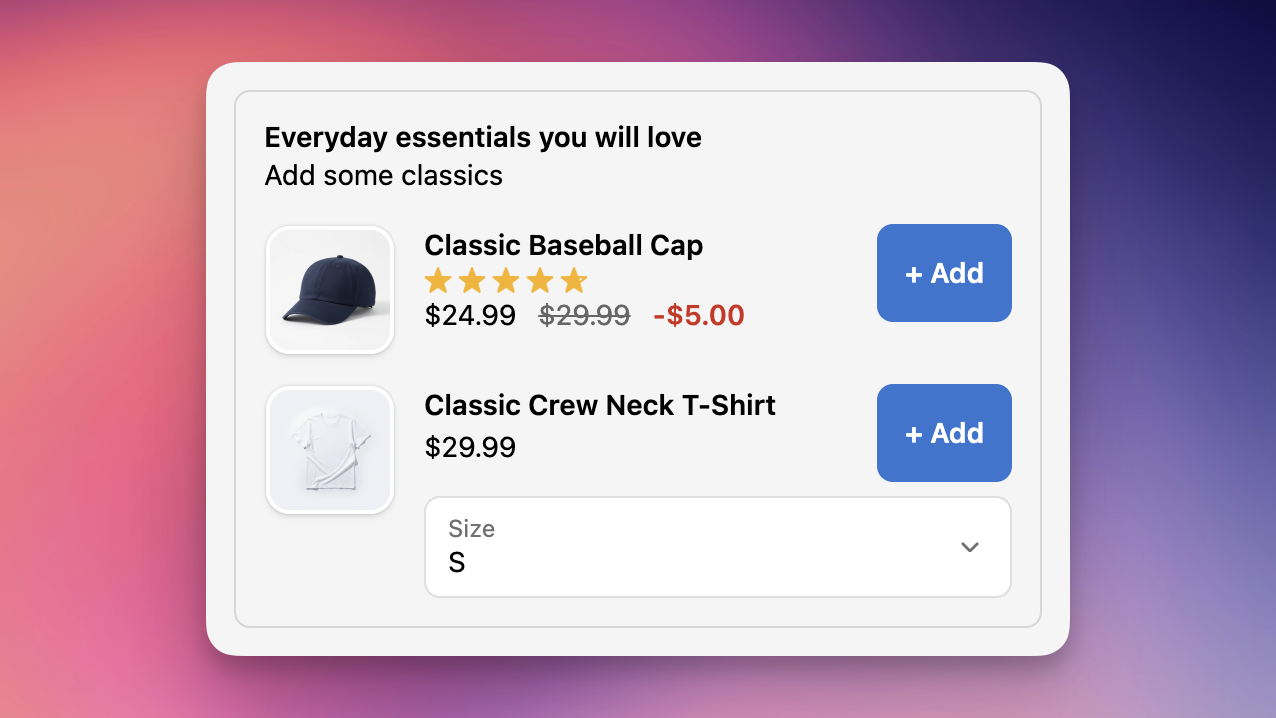
Layout - Compact card (one product with thumbnail, price, and CTA, ideal for the order summary) or Product list (stacked rows for 2–6 products with an optional quantity stepper).
Button style - Primary or Secondary. The actual button color comes from your checkout editor branding.
Image - style (Hidden, Thumbnail, or Natural) and size (Small, Medium, Large).
Display options - show compare‑at price, savings amount and its color, quantity stepper, section and per‑item borders, and a branded headline color.
Product reviews - show star ratings, optionally with the review count.
Texts - Heading, Subheading, CTA button label, and (on the Compact card layout) Description. A separate Savings section holds the Savings label (use {amount} for the saved amount). Translate these in Language & translations.
AI enhancements (shown with the Upsell flows or Hybrid: Flows + AI strategy) - Smart Insert, Smart Boost, and Smart Extend refine flow results using cart‑context AI.
Save the module and the checkout editor.
Open your store and add a qualifying product to the cart.
Proceed to checkout and confirm the recommendation appears where you placed the block.
Add the upsell and verify it lands in the order with the right price.