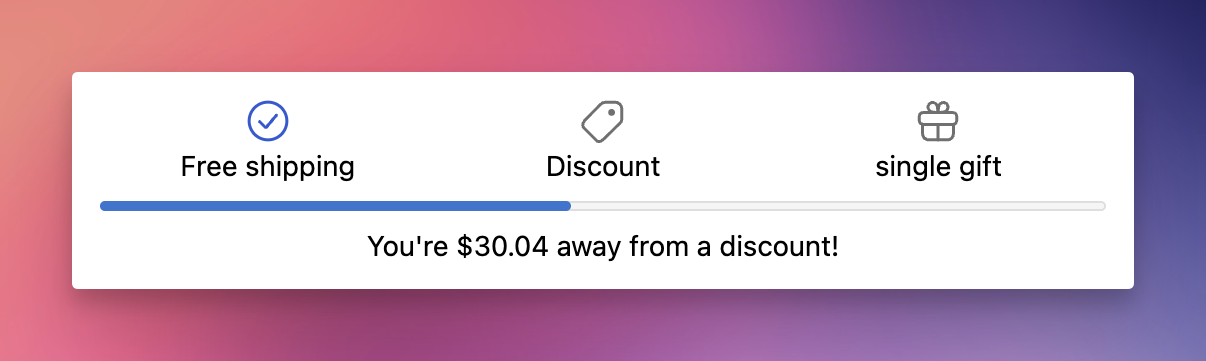
The Checkout Reward Bar brings your shipping and reward progress bar into Shopify's checkout page. Shoppers see how close they are to free shipping, a discount, or a gift - and can claim a gift - without going back to the cart.
Shopify Plus
EliteCart Professional plan or higher
Rewards V2 configured in Cart designer
This module reuses the rewards you already set up in Cart designer's shipping bar - you do not recreate them here. Edits to those rewards appear in checkout on the next page load. There is one Reward Bar module per store.
In EliteCart, go to Checkout → Create module.
In Add a checkout module, choose Reward bar and click Create module.
Info: The reward bar requires Rewards V2. If you see a prompt to upgrade, click Open Cart designer, set up Rewards V2, then add the module to checkout.
Set an Internal name and set Status to Active.
Adjust the display and gift‑chooser text (see Key settings).
Click Save. Rewards themselves stay managed in Cart designer - use Open cart designer to edit thresholds, gifts, and discounts.
Click Open checkout editor (or in Shopify admin go to Settings → Checkout → Customize).
Add the Reward Bar block to your checkout layout. There is no Module ID to copy.
Save. The status banner on the module page confirms when the block is placed.
Show reward icons above the bar - displays your custom images if set, otherwise type‑specific icons.
Show reward descriptions under icons - turn off for a compact, icons‑only look.
Gift chooser text - the "Choose a gift" button (opens the gift picker when a multi‑gift is unlocked) and the "Add gift" button (confirms the shopper's selection). Translate these in Language & translations.
A few cart‑drawer reward conditions don't yet apply at checkout. Rewards using any of these conditions still show and function normally in the cart drawer, but in the checkout reward bar hides them and does not re-asses them. That means, any gift added by the cart-based reward bar is kept, but should the customer not anymore meet the conditions due to checkout actions, it will not be removed.
Customer‑tag conditions - rewards gated by a customer tag are hidden from the checkout reward bar.
UTM conditions - rewards gated by a UTM parameter are hidden from the checkout reward bar.
All other rewards behave the same in the cart drawer and at checkout.
Save the module and the checkout editor.
Add products until you approach a reward threshold.
Proceed to checkout and confirm the progress bar and remaining amount show correctly.
Cross the threshold and verify the reward unlocks —-for a multi‑gift, confirm "Choose a gift" opens the picker and the gift is added.