Seamlessly integrate product bundles with expandable cart view, designed specifically for EliteCart by the same creators.
Bundle apps often conflict with custom cart solutions. EliteBundles was built by EliteCart's creators to solve this, providing perfect integration with expandable bundle views that help customers understand their purchases while maintaining a clean cart interface.
EliteBundles app installed from Shopify
EliteCart Professional account
Install EliteBundles Mix & Match from Shopify App Store
Follow the app's setup wizard
Create your first bundle product
In EliteBundles, set up your bundle options
Choose display type (dropdown, buttons, images)
Configure inventory tracking preferences
In EliteBundles app, go to Settings
Find "Activate integration with EliteCart" checkbox
Check the box to enable integration
Save settings
Once enabled:
Bundles appear collapsed in cart by default
Click to expand and see individual items
Uses native Shopify Cart Functions API
No custom code or HTML required
Bundle products show as single line items
Expand arrow reveals component products
Quantities update automatically
Inventory splits correctly at checkout
EliteBundles runs entirely on Shopify servers using Liquid and Cart Functions API, ensuring:
No external server dependencies
Fast performance during peak traffic
Automatic compatibility with EliteCart updates
Native multi-currency and language support
Create a test bundle in EliteBundles
Add bundle to cart on your storefront
Open EliteCart drawer
Verify bundle appears collapsed
Click expand icon to view components
Complete test checkout
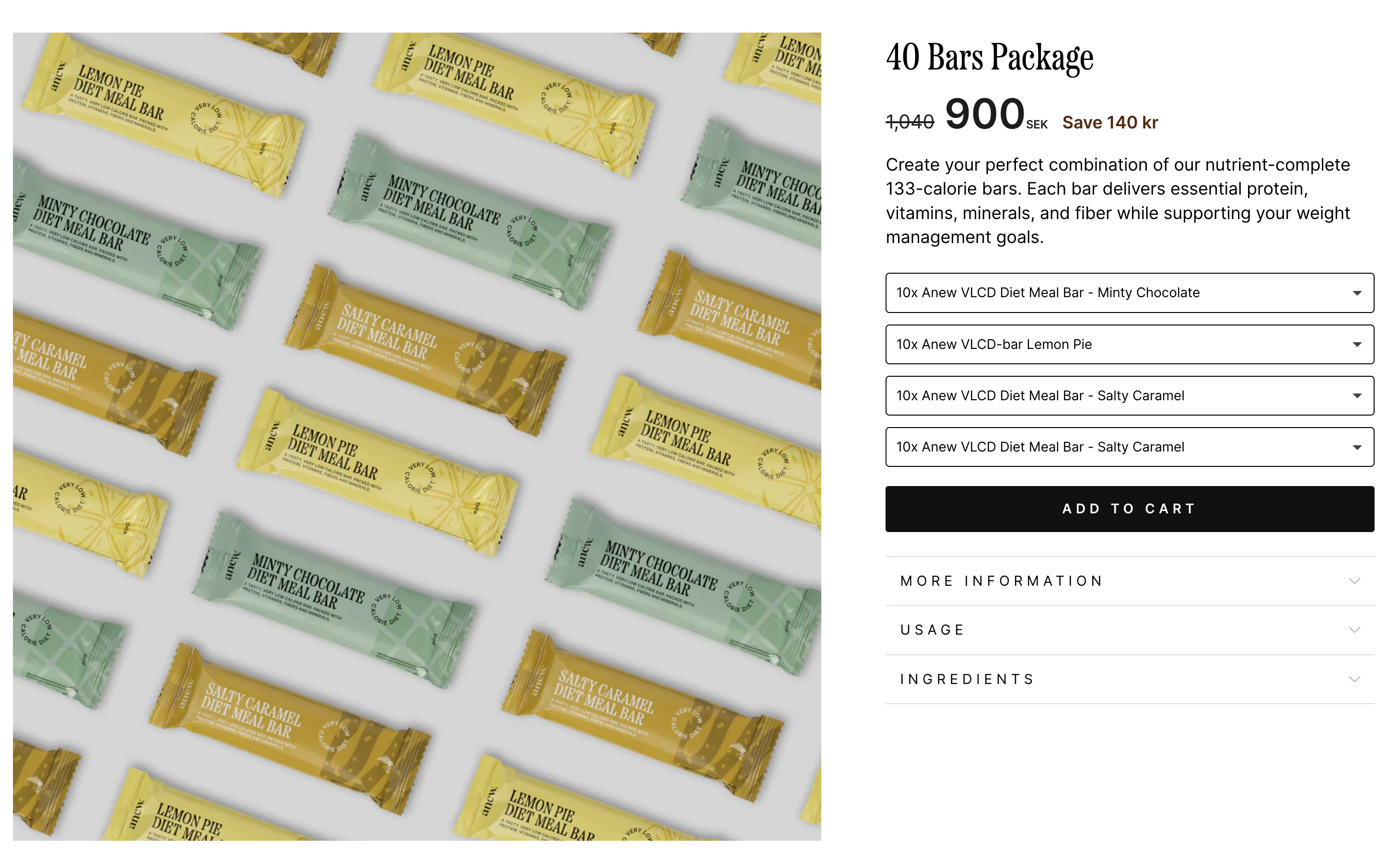
This 40-bar mix and match package was set up in EliteBundles. It uses the same style as the normal product pages in your theme.
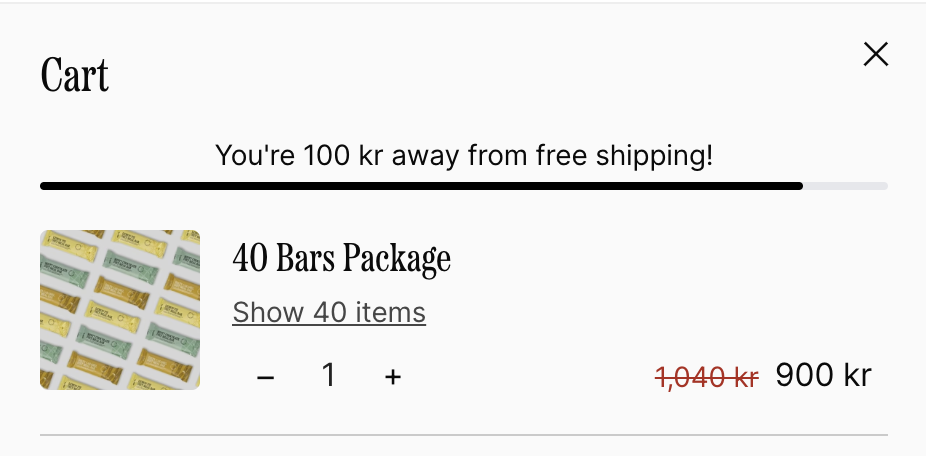
Once added to card, it shows as the package itself with a link to view the details:
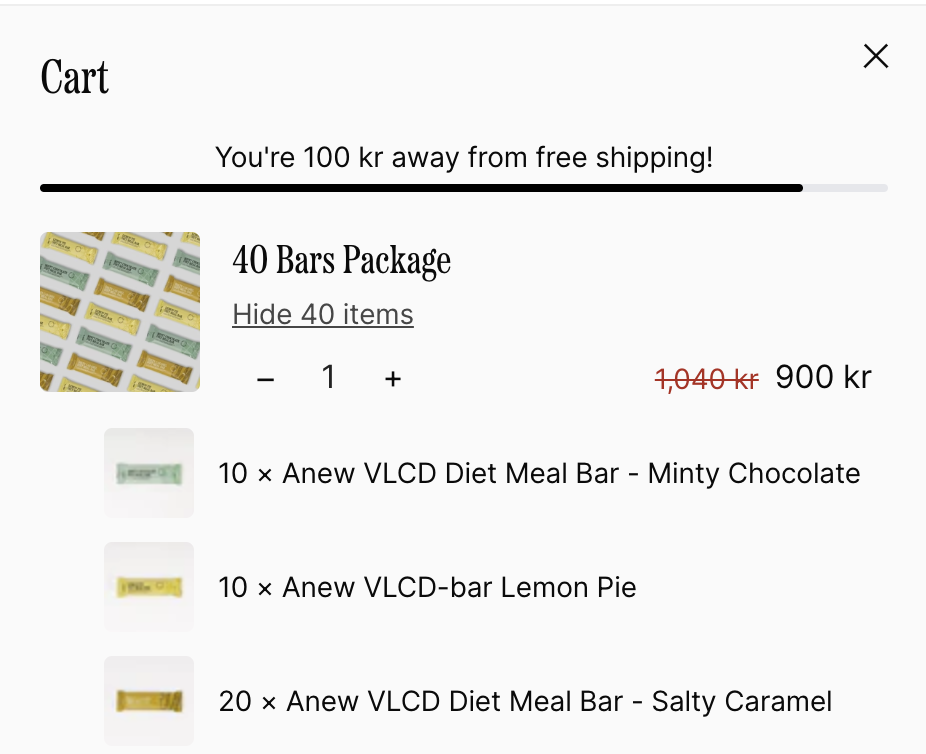
If the customer clicks on Show 40 items, it will look like this:
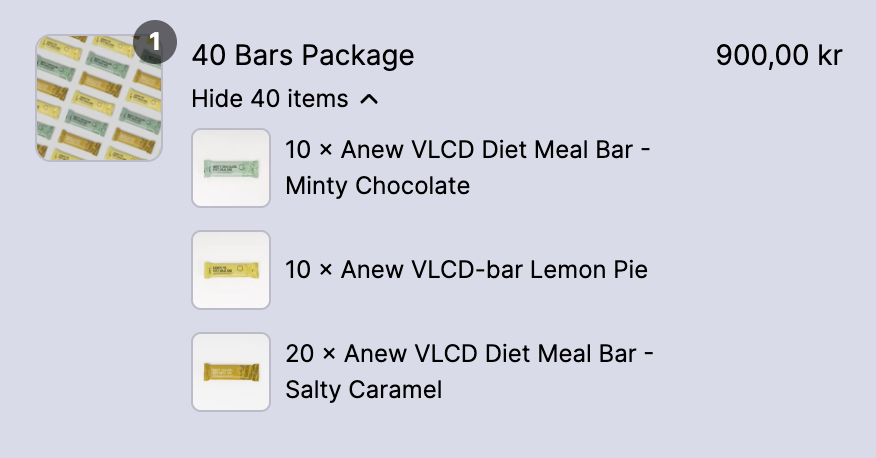
And in checkout the item will look like this: