Gift rewards are a powerful way to incentivize customers to spend more (increase AOV) and purchase now (increase conversion). This guide will walk you through the process of setting up a free gift product that you can use as a reward.

You can create gifts fully automatically from existing products. Instead of choosing an existing product, you click “Create gift product”. You will then choose one of your existing store products, which we will duplicate and adapt to be a gift.
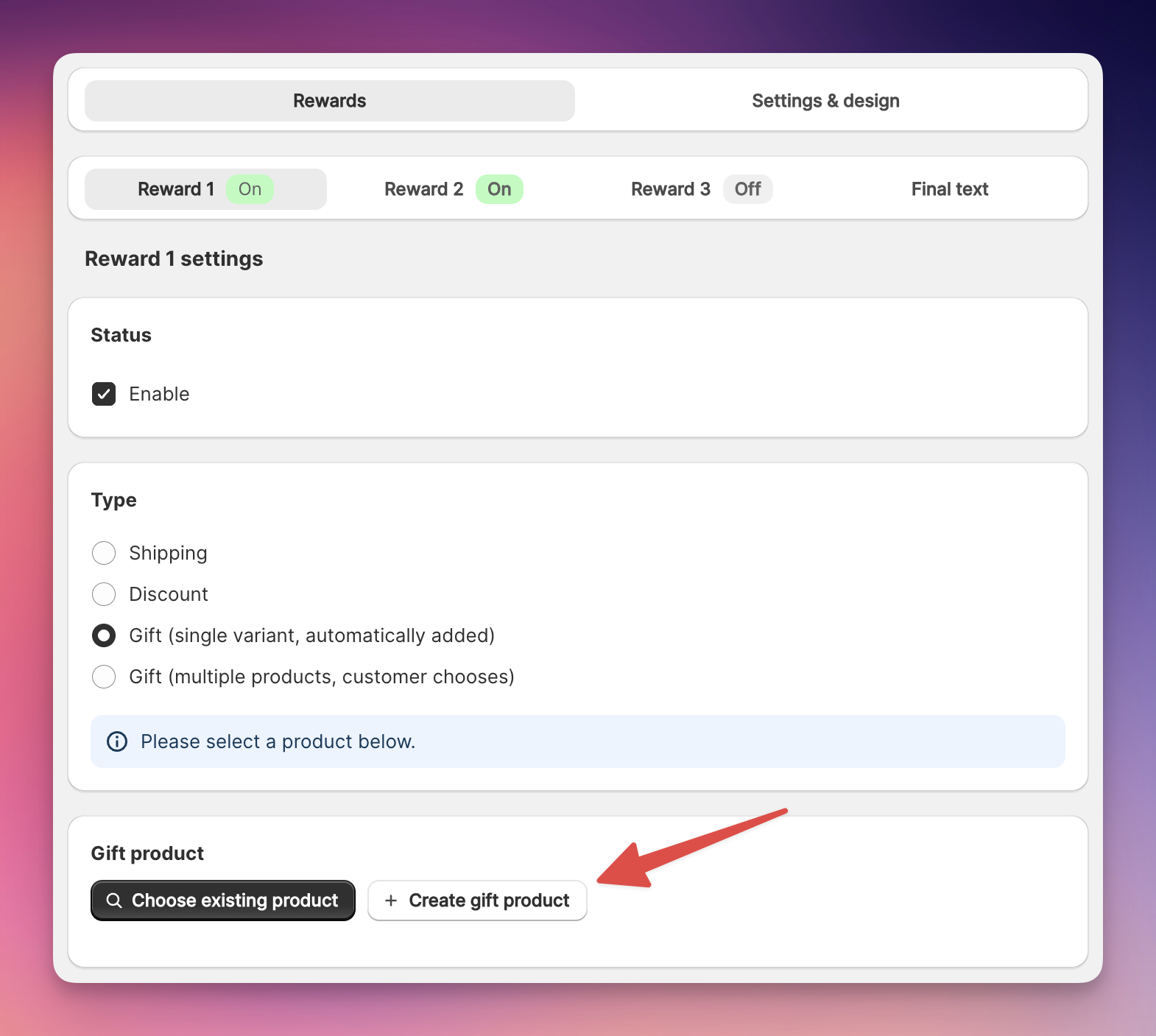
If you already have a product that you want to offer as a gift:
Navigate to your Shopify admin panel
Find the product you wish to use as a gift
Click Duplicate in the top right.
When duplicating your product:
Keep the same SKU as the original product
If you use a third party warehouse, they will typically own the stock and sync it back to your store by SKU, keeping the stock at both products in sync and up to date.
For your gift product:
Set the price to $0.00 or "Free"
Tip: Set a compare-at price to display the original value and savings to your customer!
EliteCart includes a smart way of prohibiting customers from adding gifts directly to cart:
Simply change the product type to _elite_gift
If a customer then tries to add the product to cart, they will see an error message instead. You can edit this message in the app under Language & translations
Go to the product in your Shopify Admin. Then set the product status to unlisted. This will hide the product from collections, store search, and google search.
If you want to prohibit customers from accessing the gift’s product page at all:
Add the following product tag to the relevant product _elite_block_page
If a customer tries to access the page, they will be redirected back to the page they came from, as long as it's in your online store. Otherwise, they will be redirected to your homepage.
Alternatively, you could keep the product page accessible and display a text (e.g. use the product description) on how to reach the reward and claim the gift. You might want to create a custom product template for these products (in your theme) where you disable or hide the Add to Cart button completely for a better user experience.
NOTE: If you set your product status to unlisted, this is already covered.
To hide the product from appearing in store search and google search:
Configure the SEO meta field that Shopify provides and set it for the relevant product
Follow our detailed instructions in this article:
Hiding Addons and Gifts from Search and SEO
We highly recommend setting your gift rewards as free products, particularly when you decide to use the auto-added gift. Otherwise you will create confusion for the customer and might reduce conversion (although it is possible for the customer to remove gifts from the cart). Also, the point of gifts is to increase AOV by wanting the customer to reach the gift, not through the gift itself.
Use clear, enticing product images and descriptions
Set smart thresholds for claiming the gift. Look at your average order value and set it a little higher than that.
Use gifts with high perceived value, but low costs. Also consider shipping costs (low volume and weight) of the gift.
Consider rotating gift products from time to time to keep customers engaged
Monitor which gifts drive the most engagement
EliteCart offers three ways to make a gift cost $0 at checkout. Each has trade-offs; none is universally best. This article covers the free gift product method (a duplicate product priced at $0); the other two are Cart Transform (Shopify Plus only) and Automatic discount (any plan), both documented in the Auto-discount gifts article.
You don't want to consume one of Shopify's 25 automatic-discount slots. The Automatic discount method uses one slot per store; the free gift product method uses zero.
You don't want to manage discount combination rules. When a Shopify automatic discount is in play, your other automatic discounts have to be set to "combine with Product discounts" for them to stack with the gift discount. With a $0 duplicate product, there's no discount in the picture - your other promotions are unaffected.
You don’t sell your gift product as a normal product. If your customers cannot purchase the product you give as a gift anyways, there are no inventory issues and it’s easy to just price the gift at $0.
The duplicate $0 product has its own Shopify inventory that doesn't automatically sync with the original product, even when they share the same SKU. If you sell the original heavily and also give the duplicate away as a gift, the duplicate's inventory will drift out of sync with the original. You'll need to either rely on a same-SKU sync (via a 3PL or a Shopify inventory-sync app), or top up the duplicate's stock manually. The Handling Inventory for Free Gift Products article walks through three approaches in detail.
Cart Transform and Automatic discount don't have this problem because they re-price the original product's line at checkout — there's no duplicate, so inventory stays unified.
On Shopify Plus → Cart Transform is usually the smoothest experience (no discount slot consumed, no inventory split, no discount-combination concerns). Only potential concern: Your bookkeeping system gets a zero-priced product, rather than a discounted product.
On any other Shopify plan and inventory matters → Automatic discount is usually the right pick because it keeps inventory unified. The trade-offs are a consumed discount slot and the combination-rule requirement.
On any plan, particularly when you use discounts heavily → the free gift product approach in this article.
If anything is unclear or you run into issues, just reach out and we are happy to help.